SwiftUI at Scale: Three Years of Lessons In Production
What works, and what doesn’t when thousands of the the most discerning iOS users use your app — built in SwiftUI — every single day.
All views are my own, any data or screenshots have confidential data redacted.
Introduction
I wanted to write about my experience with migrating a large, heavily used app, from UIKit to SwiftUI. There was a lot of learning along the way, and I’m delighted to share some of it below.
The Soho House app is used every day by over 200k members to talk to each other, catch up on the latest news, invite friends to the House, see who else is at the House, view and pay their bill and book tables, events, rooms, spa treatments, and gym classes. Many of the same screens and features are used by other membership club apps, and they are all built with SwiftUI.
This wasn’t always the case. At one point in time, the code base was forked so that each app could have their own styles and functionality. Developers largely worked on their own app’s branch, and code was occasionally painfully migrated from one app to another. Features were built in MVVM, using UIKit and table or collection views. At that point we had a dream, to unify the branches and bring everything together. Each app would pick the features it would want, inject its own styling or layout, and configure the behaviour it needed.
We had some internal discussions, and decided to use an MVVM+C pattern centred around SwiftUI views. At the time we had a few different projects ongoing, and we built all new or radically different functionality in the new pattern with SwiftUI. Here is some of what I learnt on that journey.
What worked well
Simple views
As expected with SwiftUI, it’s very easy to build and experiment with simple layouts very quickly. Moving views around a screen is generally a matter of cut and paste, and the preview window is generally responsive.
Carousels inside scrollviews
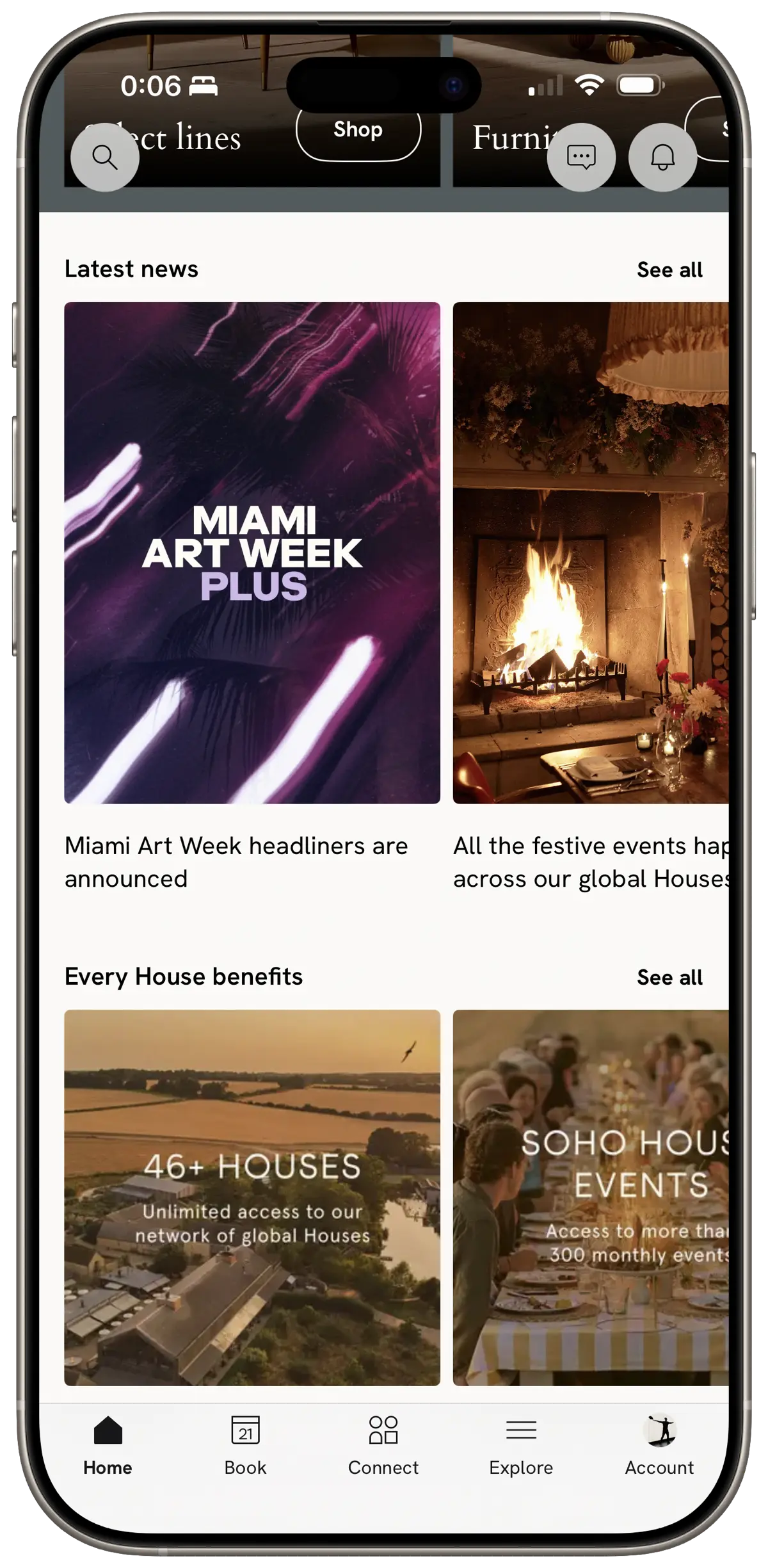
Having carousels that scroll horizontally inside a vertical scrollview is quite common, and by the time SwiftUI came around this was largely a solved problem in UIKit. In SwiftUI however it is far easier to handle and manage. No need to make child collection views and worrying about managing the data source, heights or view recycling. Instead you define the contents of the carousel in the same place that you create the carousel, e.g.
var body: some View {
  ScrollView(axis: .vertical) {
    VStack {
      // … some content
      myCarousel
    }
  }
}

var myCarousel: some View {
  ScrollView(axis: .horizontal) {
    LazyHStack(alignment: .top) {
      ForEach(viewModel.state.carouselItems) { item in
        MyCarouselView(item)
      }
    }
  }
}
Calendar view
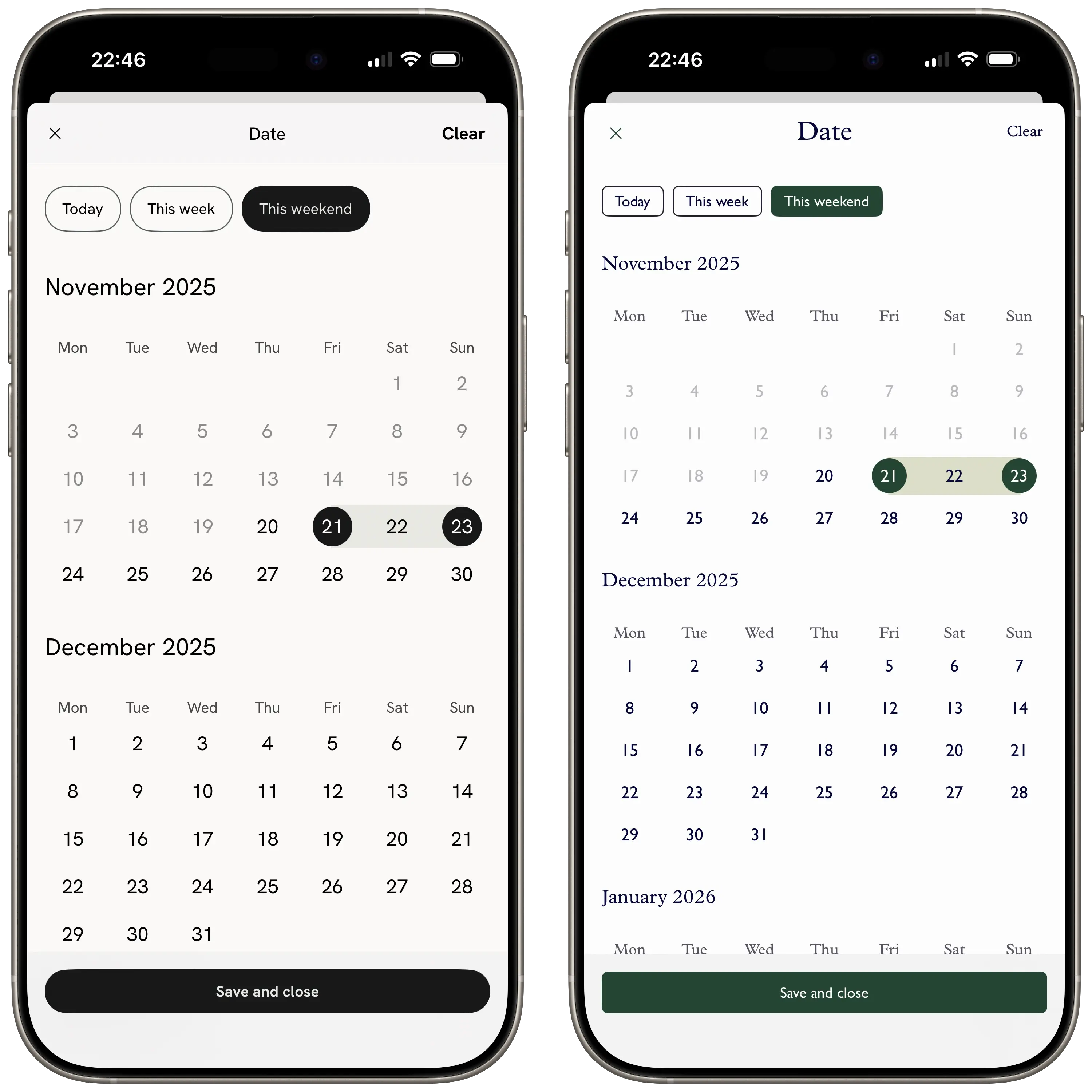
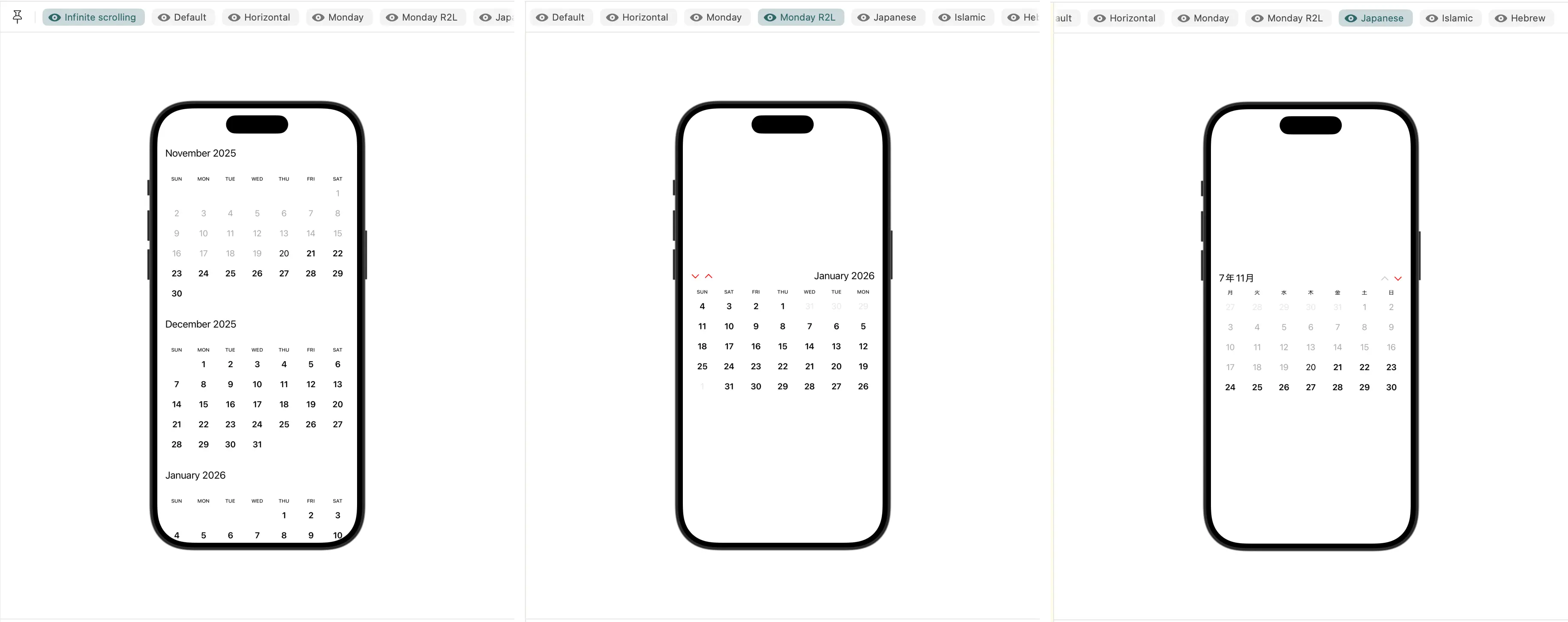
Like many apps where you book things in the future, we have a calendar view for picking ranges of dates. UICalendarView was introduced in iOS 16, and we may have used that had we been able to (our minimum iOS version is currently 15.0), but it also doesn’t support full style configuration. Anyway, we ended up building our own which gives us full control over styling and the surrounded components — it supports all foundation calendars, right to left languages, multiple scrolling modes (i.e. infinite scrolling, paged), single or multi selection and it performs well without animation hitches. Best of all, it took only 1 day to build. The SwiftUI preview tool was the trick here, it made it very easy to switch between multiple calendar configurations and test that all of them worked as expected.
Snapshot tests
With the api services fully mocked, it becomes possible to build your complete view hierarchy, backed by stable mock data. By overriding your image caching library’s downloader, you can even have mocked remote images! You can already do this with UIKit, but they continue to work well with SwiftUI. This is a great way of generating confidence that your changes didn’t have unintended consequences in other apps when sharing features. You can find swift-snapshot-testing on GitHub.
Landmines
Default spacing
Stack views have a default spacing between items, and .padding() also has its own values that vary depending on where it is used. This isn’t always obvious, particularly the default stack view spacing. If you have proscriptive designs then you will want to always set a value.
iOS version inconsistencies
Part of the allure of SwiftUI was that by declaring your view instead of building it, underlying improvements in the system could automatically update your views without you having to do much. This is a double edged sword, and you will want to check some of the more complex views for issues on older iOS versions. You might find that everything looks ok, but then you notice that keyboard accessory views don’t appear on one version of iOS unless there’s a navigation controller present. That kind of thing. The nature of SwiftUI means these are easy to workaround, but with a large enough project you should be prepared.
Async state management
Hopefully by now you will be using structured concurrency, or migrating. When you fetch data and update your view state, you might be tempted to reduce your code.
// Before
let result = await getDataFromAPI()
state = state.updateWithResult(result)

// After
state = await state.updateWithResult(getDataFromAPI())
Don’t do this, on any screen with multiple asynchronous updates this can go very badly. If I show you the equivalent code using blocks, it might highlight why.
await getDataFromAPI() { [weak self, state] result in
    self?.state = state.updateWithResult(result)
}
As you can see, the state is captured when the block is created. Any updates applied to state during that time could be overwritten once this block completes. Consider a SwiftLint rule to prevent this.
Performance issues
From experience, SwiftUI can have very good performance so long as you manage your state well. Try and keep state contained to the views that need it — and reserve your top level / view model state for properties that come or leave the view model to your service layer. You should also not update your state, based on other state updates — use one @State property, and pass bindings to child views if the state needs to be shared and updated, or just the value if it only needs to be reflected.
The task view modifier
The .task { … view modifier is triggered on every appearance. The result is that if you use it to perform some initial fetching of data you may be unintentionally re-triggering your network request every time a view is push/popped from the navigation stack. You can add a check in your fetch function, or create your own extension similar to task that only fires on the first appearance.
Remote image sizing
If you have images coming from a remote source, e.g. profile images, you may find that some at extreme sizes or aspect ratios break your layout. You can get around this issue and preserve your layout by creating a rectangle with our intended aspect ratio / size, overlay the rectangle with the remote image, then clip everything to the intended shape. This technique reliably preserves the layout of your view, while giving you a natural placeholder shape for your image before the download is finished.
Example:
Rectangle()
  .fill(styler.placeholderColor)
  .aspectRatio(1, contentMode: .fit)
  .overlay {
    RemoteImage(…)
      .resizable()
      .scaledToFill()
  }
  .clipShape(RoundedRectangle(cornerRadius: styler.cornerRadius))

Closing
Using SwiftUI extensively for the last few years has enabled us to unify our code base, support multiple apps with the same features, bug fixes and improvements at the same time, and stay up to date with the latest developments in iOS land.
Are you still using UIKit and thinking about taking the plunge? Don’t be worried — SwiftUI will almost certainly be able to cover everything. If there’s a slim chance it doesn’t, it’s very easy to use the escape hatch and return to UIKit.
I hope you found this useful. I will be writing more guides and content about production iOS engineering. If you’d like to stay updated you can follow me on X — @benzoate, or subscribe to this site via RSS.
I’m happy to answer any questions, so if you have any then please feel free to reach out.
| Benzoate | benzoate.net | 27 Nov 2025 |